🧠 Introduction
If you’re using a Samsung Smart TV and searching for the best way to stream IPTV Finland channels in 2026, look no further than IBO Player. This modern, premium IPTV player is fully compatible with Tizen OS and provides a fast, smooth user experience.
In this guide, we’ll show you exactly how to:
- Install IBO Player on your Samsung TV
- Activate it with your IPTV playlist
- Optimize your settings for the best streaming experience

🔧 Step 1: Open Smart Hub and Search for IBO Player
- On your Samsung remote, press the Home button.
- Navigate to Apps.
- Click on the Search icon 🔍.
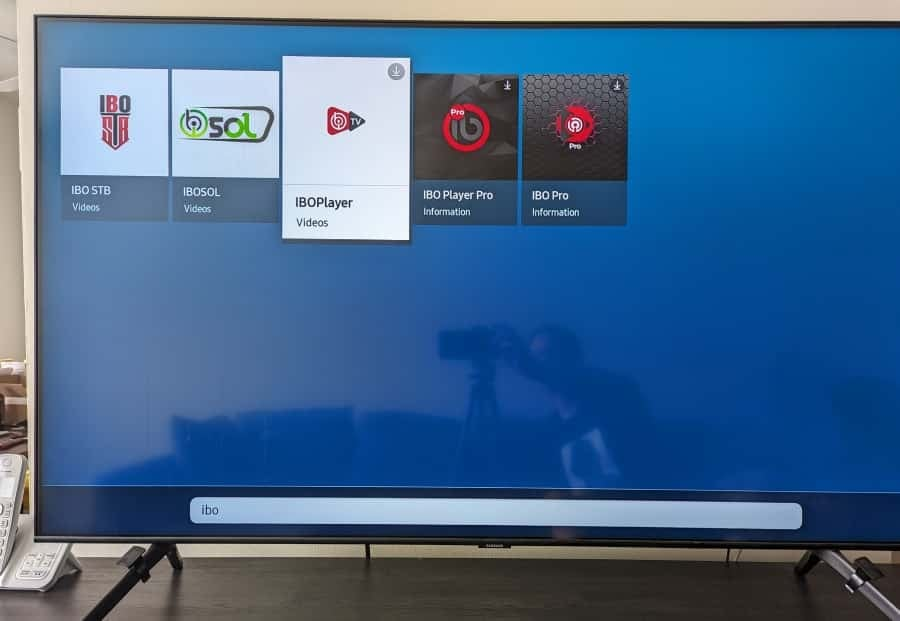
- Type: IBO Player
- Select the app from the list.
📥 Step 2: Install the IBO Player App
- Click on the IBO-Player app icon.
- Hit Install.
- Wait for the app to download and install (takes a few seconds).
- Once done, click Open.
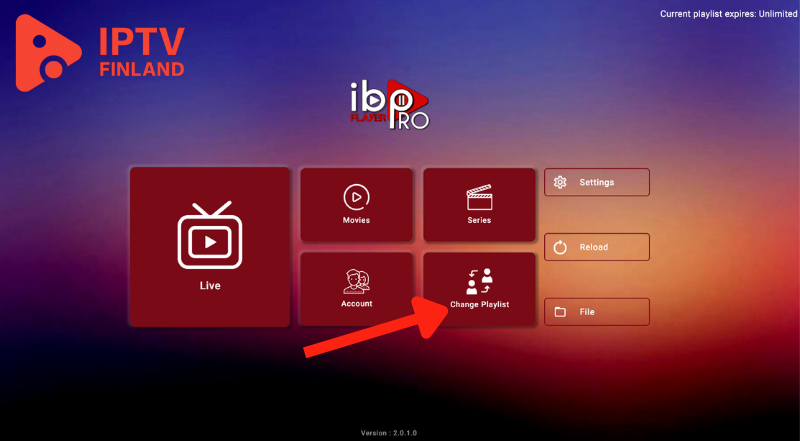
🔑 Step 3: Get Your Device ID & Key
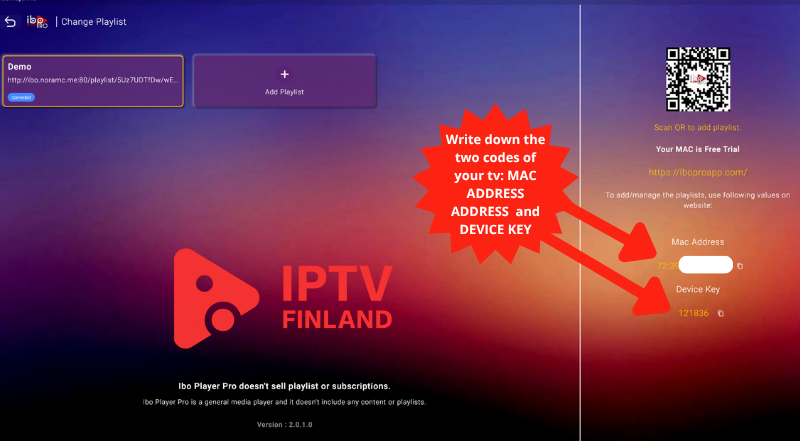
When IBO Player first opens, it will display:
- Device ID
- Device Key
⛔ You need this information to activate the app.
🌐 Step 4: Activate the App via IBO Portal
Go to: https://iboiptv.com/device
- Enter the Device ID & Key.
- Log in or create a new account.
- Choose your license type (7-day trial, 1-year, or lifetime).
- Complete payment or activation.
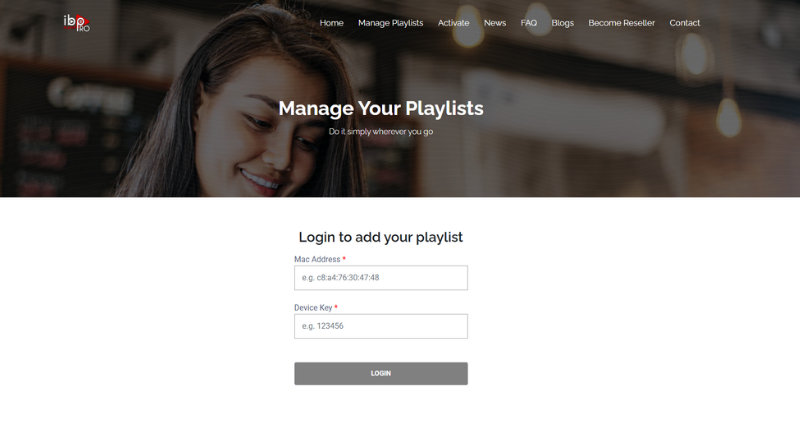
📡 Step 5: Add Your IPTV Playlist
Once activated, go back to your TV:
- Open the app
- Click Add Playlist
- Choose between:
- M3U URL
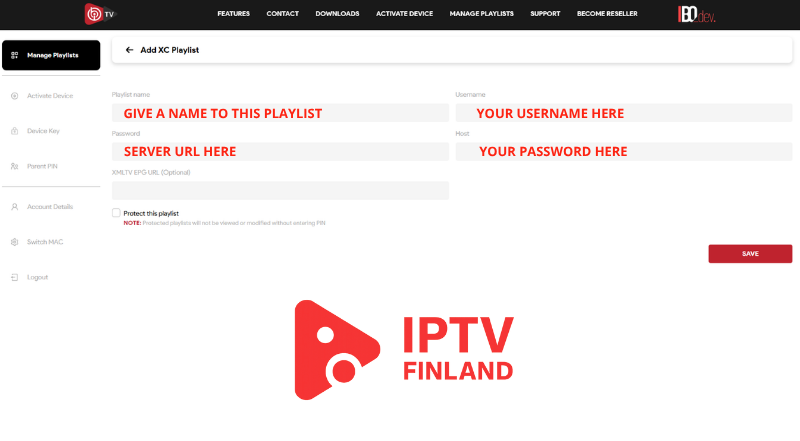
- Xtream Codes API
- Paste your IPTV provider details (e.g., from iptvfinland.org)
- Save and refresh.
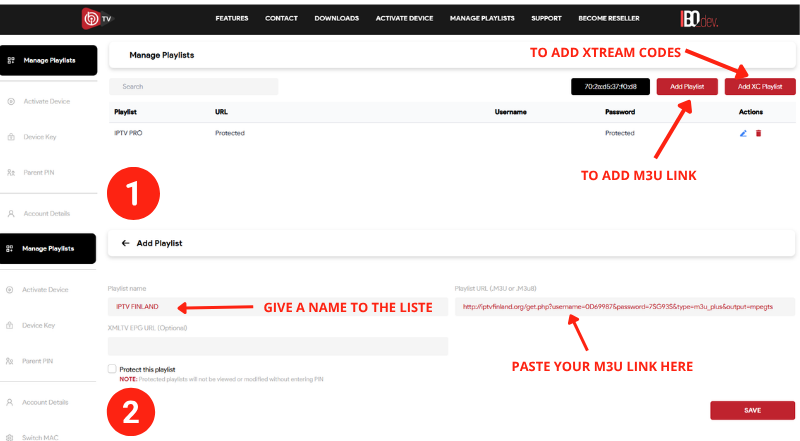
🟦 Playlist Name
👉 Type any name you like — it helps you identify the playlist.
Examples:
- My IPTV
- iptv finland
- Family Channels
- ✅ Example M3U:
http://iptvfinland.org:8080/get.php?username=demo&password=demo&type=m3u
5.1And here’s how to use Xtream codes details
💡 Pro Tips
- Use a VPN (like NordVPN) for security & geo-unblocking.
- Have at least 10–20 Mbps internet for smooth 4K playback.
- Close background apps on your TV to improve performance.
- Set a parental PIN for Kids channels.
Choose Your IPTV Finland Plan
Enjoy over 25,000+ Live TV Channels, 140,000+ Movies & TV Shows, premium sports, and ultra-fast 4K streaming with instant activation.
VIEW SUBSCRIPTION PLANS →✔ Instant Activation ✔ Secure Payment ✔ 24/7 Support
💎 Ready to Unlock Full Access?
Want the full version of IBO Player with no limits and lifetime features?
🎁 Get your IBO Player Pro activation directly from us and enjoy:
- ✅ Lifetime license (no monthly fees)
- ✅ Fast activation & support
- ✅ 100% official code
- ✅ Secure payment on our Finnish store
👉 Click here to activate IBO Player Pro now and start streaming without restrictions!
🏁 Conclusion
Installing and activating IBO-Player on your Samsung Smart TV is straightforward—and once set up, it becomes a powerful IPTV hub. With support for M3U, Xtream, EPG, and multi-language settings, it’s one of the best IPTV Finland players in 2026.
Helpful Resources
👉 Learn More About Our Service
👉 Explore Available Plans
👉 Read More About IPTV Technology
Does IBO-Player support M3U?
Yes. IBO Player supports M3U and related playlist formats on compatible versions.
Can IBO-Player stream in 4K?
Yes, compatible versions support 4K playback when the device and source also support 4K.
Does IBO-Player work on Smart TVs?
Yes. IBO Player is available across compatible Samsung, LG and other Smart TV platforms, although availability varies by model and region.
Can I use IBO-Player on Firestick?
Yes. IBO Player supports compatible Amazon Fire TV devices.