Kodi for Windows & Mac is a powerful media-center solution for users who want to organize and enjoy movies, TV shows, music, photos, and other personal media from one convenient interface. Unlike traditional streaming applications, Kodi is designed to bring different media sources together in a customizable entertainment hub.
The software is available for both Windows and macOS, making it a flexible option for desktop and laptop users. Whether you have a large collection of movies stored locally or want to connect compatible network media sources, Kodi provides a wide range of useful tools.
Kodi for Windows & Mac
Kodi is an open-source media center that can organize and play compatible digital media.
On a Windows PC or Mac, Kodi can be used to manage:
- Movies
- TV shows
- Music
- Photos
- Personal videos
- Network media
- Compatible streaming sources
The software provides a television-style interface even when you’re using a traditional computer or laptop.
One of its biggest advantages is customization. Users can organize their libraries, change the interface, configure playback settings, and install compatible add-ons.
Why Use Kodi on Windows or Mac?
There are several reasons desktop users choose Kodi instead of relying exclusively on individual media applications.
Large Screen Experience
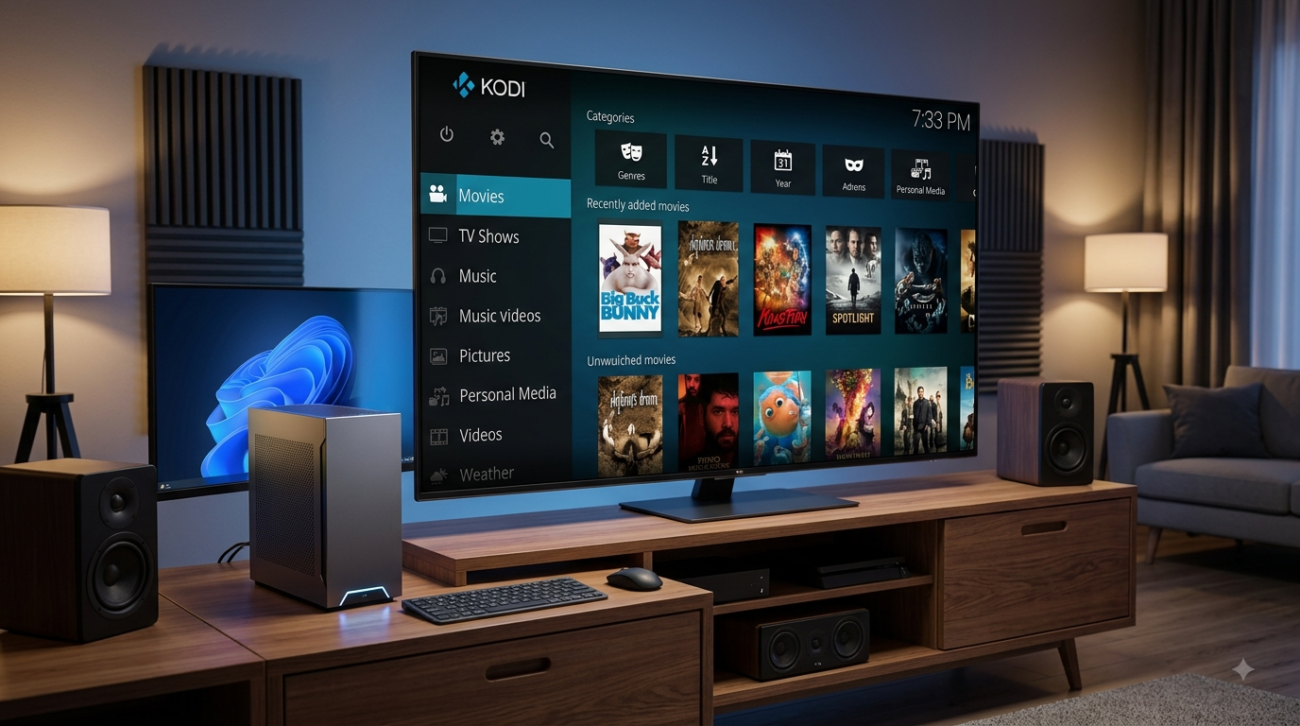
Kodi works particularly well when a Windows PC or Mac is connected to a television or external display.
Media Organization
Instead of keeping movies and TV shows scattered across folders, Kodi can create a structured library with categories and metadata.
Customization
Users can personalize various aspects of the Kodi interface and configure the application around their preferred viewing habits.
Multiple Media Sources
Kodi can work with compatible local storage and network media sources, making it useful for households with large digital libraries.
KODI FOR WINDOWS & MAC : The following step-by-step guide will show you How To Install Kodi for Mac. In this example, we are using a MacBook Pro with macOS Mojave version 10.14.6.
1. Open an Internet browser on your Mac and visit the official Kodi website – https://kodi.tv/
2. Once on the Kodi website click Download button in the upper right of your screen.

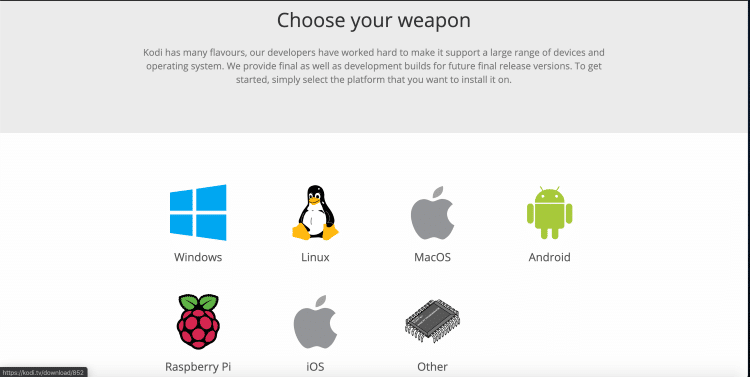
3. Scroll down and click the MacOS icon under “Choose your weapon.”
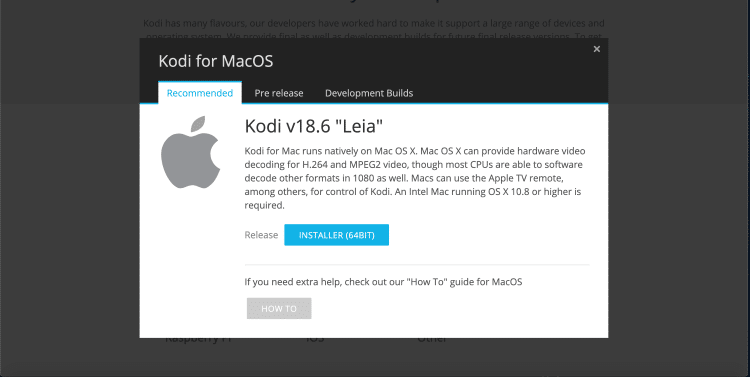
4. Then select the Installer (64BIT) button.
5. Kodi will then start to download on your Mac. You will want to click the download icon on the bottom left side of the screen when the download completes.
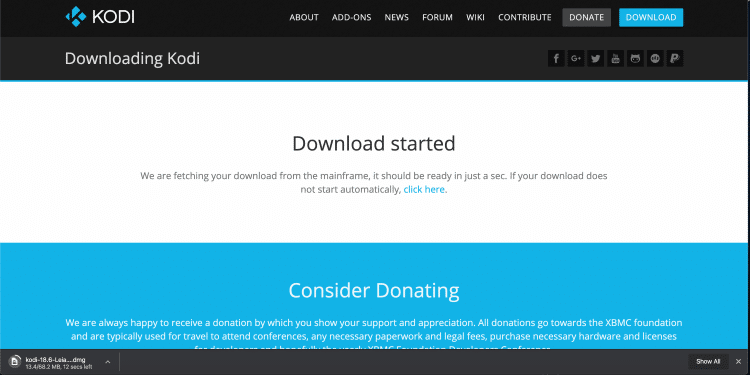
6. Drag the Kodi icon to your Applications folder.

7. Open your Applications folder and locate the Kodi app.

8. Click Open when prompted with this message.

9. That’s it! You have successfully installed Kodi for your Mac.

How to Reset Kodi on Mac
1. On the desktop of your Mac hover over the Go option in the upper menu and click Go to Folder.

2. The Go to Folder box will then appear.

3. Enter in the following text – “~/Library/Application Support”

4. Locate the Kodi folder.

5. Click the Kodi folder then select Move to Trash.

That’s it! You have now successfully reset Kodi to default on your Mac.
Choose Your IPTV Finland Plan
Enjoy over 25,000+ Live TV Channels, 140,000+ Movies & TV Shows, premium sports, and ultra-fast 4K streaming with instant activation.
VIEW SUBSCRIPTION PLANS →✔ Instant Activation ✔ Secure Payment ✔ 24/7 Support
How to Install Kodi for Windows PC
The following Kodi installation method works on all Windows PCs running Windows 10 and higher. For those using Macs, see our full tutorial for installing Kodi on Mac computers.
1. Open an Internet browser on your Windows PC and visit the official Kodi website (kodi.tv).
2. Once on the Kodi website click the Download button in the upper right of your screen.

3. Scroll down and click the Windows icon under “Select Your Platform.”

4. Then select the Installer (64BIT) button.

5. Kodi will then start to download on your Windows PC. You will want to click the download icon on the bottom left side of the screen when the download completes.

6. The Kodi Setup message will then appear. Click Next.
Use on Unlimited Devices & Share 1 Account with Entire Family
CLAIM DEAL HERE

7. Click I Agree.

8. Click Next.

9. Choose your preferred Destination Folder for the Kodi application and click Next.

10. Click Install.

11. Wait a minute or two for Kodi to fully install on your Windows PC.

12. Click Finish.

13. That’s it! You have successfully installed Kodi for your Windows PC.

Setting Up Your Kodi Media Library
Once Kodi is installed, the next step is organizing your content.
Add Your Movie Folder
Navigate to the relevant media section and add the folder containing your legally obtained movie files.
Kodi can scan compatible files and organize them into a library.
Add TV Shows
You can also create a dedicated folder for your television series.
Keeping movies and TV shows in separate folders generally makes library organization easier.
Add Music
Kodi can organize compatible music files into albums, artists, genres, and playlists.
Add Pictures
Personal photographs can also be organized and viewed through Kodi.

Helpful Resources
👉 Learn More About Our Service
👉 Explore Available Plans
👉 Read More About IPTV Technology
Is Kodi available for Windows?
Yes. Kodi provides a Windows version that can be installed on compatible Windows computers.
Does Kodi work on Mac?
Yes. Kodi supports compatible macOS devices and can be installed through the official Kodi distribution.
Is Kodi free?
Yes. Kodi is open-source software and does not require a standard subscription to install the application itself.
Can I connect Kodi to my TV?
Yes. A Windows PC or Mac can be connected to a compatible television, commonly through HDMI.
Can Kodi play my own movies?
Yes. Kodi can organize and play compatible personal media files stored on your computer or supported network storage.
Does Kodi provide TV channels automatically?
No. Kodi is a media-center application. It does not automatically provide premium television channels or copyrighted movies. Any external service or source should be used legally and with the appropriate authorization.