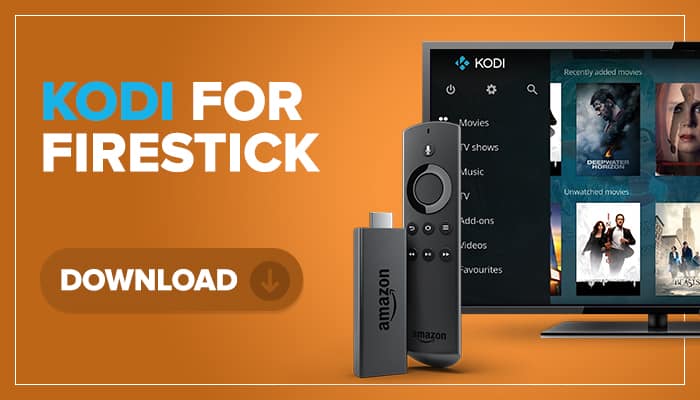
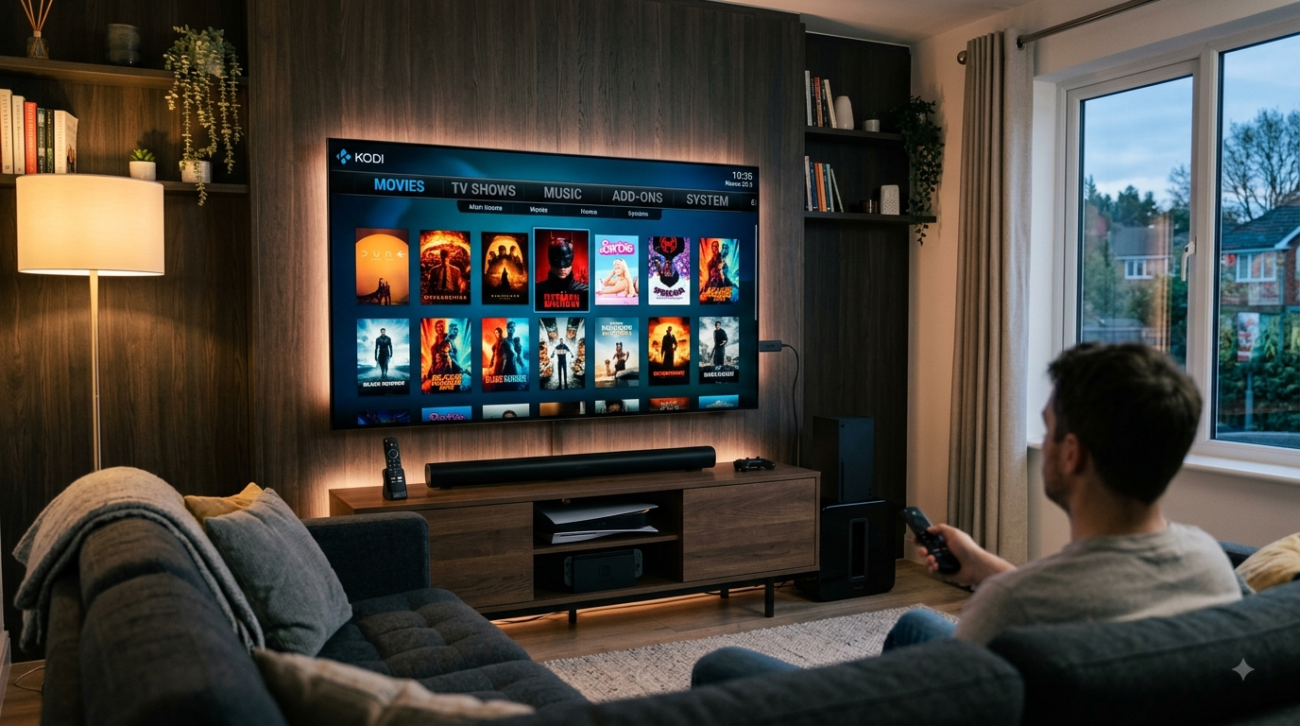
Kodi in Firestick is a popular combination for users who want to turn their television into a flexible entertainment center. Amazon Fire TV devices provide a compact
streaming platform, while Kodi adds powerful media organization and customization features.
With Kodi installed on a compatible Fire TV device, users can organize personal media, access supported services, customize the interface, and manage different entertainment sources from one application.
In this guide, we’ll explain what Kodi does on Firestick, how to install it, how to configure it, which settings are useful, and how to use add-ons responsibly.
Why Kodi in Firestick Is So Popular
Firestick is already a convenient streaming device, but Kodi can add another layer of flexibility.
Users appreciate the combination because it offers:
- A television-friendly interface
- Media library organization
- Customizable menus
- Support for compatible add-ons
- Network media access
- Personal media playback
- Easy remote-control navigation
Instead of using a computer as a media center, Firestick allows the experience to happen directly on the television.

What Is Kodi?
Kodi is an open-source media center designed to organize and play compatible digital media.
It can manage content such as:
- Movies
- TV shows
- Music
- Photos
- Personal videos
- Network media
- Compatible online sources
Kodi itself does not automatically provide premium television channels or copyrighted movies. The content available through Kodi depends on the sources and add-ons configured by the user.
What Is Firestick?
Amazon Fire TV Stick is a compact streaming device that connects to a television through HDMI.
It provides access to compatible applications and streaming services through the Fire TV platform.
Its small size makes it convenient for:
- Living rooms
- Bedrooms
- Travel
- Secondary televisions
- Home entertainment setups
Combining Firestick with Kodi creates a compact media-center solution that can be controlled directly from the television.
How to Install Kodi in Firestick
Installing Kodi requires only a few basic steps.
Step 1: Connect Your Firestick
Connect your Firestick to an available HDMI port on your television and make sure it has an internet connection.
Step 2: Open Fire TV Settings
From the Fire TV home screen, open Settings and navigate through the device options until you can manage application installation permissions.
The exact menu wording can vary between Fire TV versions.
Step 3: Install the Required Downloader Tool
If you need to download the official Kodi package directly, install a reputable downloader application available through the Fire TV app ecosystem.
Step 4: Download Kodi
Use the official Kodi website to obtain the appropriate Fire TV/Android-compatible release.
Avoid unofficial modified APK files from unknown websites.
Step 5: Install Kodi
Open the downloaded package and follow the on-screen installation instructions.
Once installation finishes, Kodi should appear among your installed applications.
Step 6: Launch Kodi
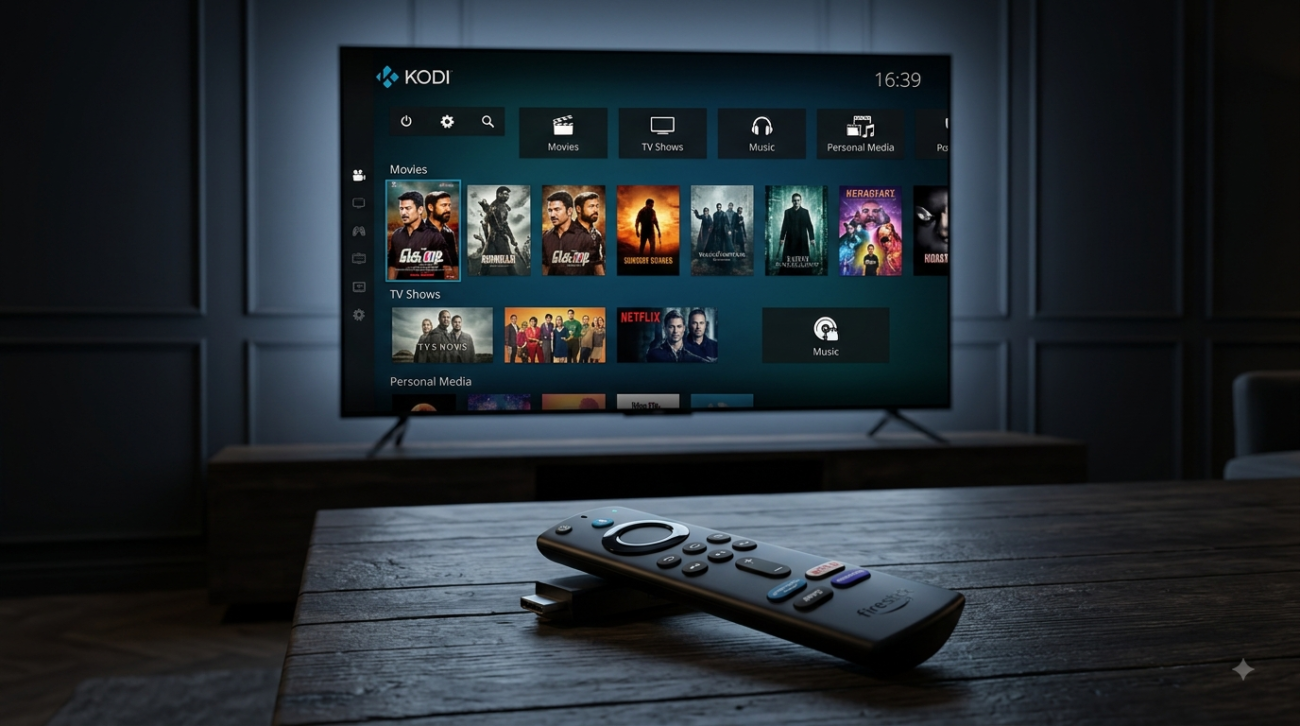
Open Kodi from your Firestick applications and begin configuring your media center.
Setting Up Kodi After Installation
Installing Kodi is only the beginning. A few configuration changes can make the interface much easier to use.
Configure the Interface
Kodi allows users to customize the appearance of the media center.
You can organize:
- Main menu categories
- Media sections
- Favorites
- Library views
- Interface settings
Add Your Personal Media
If you have movies or TV shows stored on compatible network storage, USB-connected hardware, or another supported source, Kodi can organize them into a library.
Make sure the Firestick and storage source can communicate correctly over your network.
Choose Your IPTV Finland Plan
Enjoy over 25,000+ Live TV Channels, 140,000+ Movies & TV Shows, premium sports, and ultra-fast 4K streaming with instant activation.
VIEW SUBSCRIPTION PLANS →✔ Instant Activation ✔ Secure Payment ✔ 24/7 Support
How to Add Movies to Kodi
Adding personal movie collections is one of Kodi’s most useful features.
Start by selecting the appropriate media section and choosing the option to add a media source.
Then:
- Select the storage location.
- Choose the folder containing your movies.
- Give the source a recognizable name.
- Select the appropriate content type.
- Allow Kodi to scan the files.
Kodi can then organize compatible media into a more attractive library interface.
How to Add TV Shows
TV series can be organized in a similar way.
For better results, keep each series in its own folder and organize seasons separately.
For example:
TV Shows
- Series A
- Season 1
- Season 2
- Series B
- Season 1
- Season 2
A clean folder structure helps Kodi identify and organize content correctly.
Kodi Add-Ons on Firestick
Add-ons are one of Kodi’s most important features.
They can extend Kodi with additional functionality, including:
- Subtitles
- Music services
- Podcasts
- Weather
- Media information
- Streaming services
- Utility tools
However, users should be careful when installing third-party add-ons.
Only use add-ons from sources you trust, and make sure you have the appropriate rights to access any content they provide.
Avoid modified builds and unknown repositories that promise unlimited access to premium copyrighted content.
Best Kodi Settings for Firestick
A few adjustments can improve the overall experience.
Keep Kodi Updated
Using a current stable release can improve compatibility and resolve bugs.
Keep Firestick Updated
The Fire TV operating system should also be kept current.
Use a Stable Wi-Fi Connection
Because Firestick relies heavily on wireless connectivity, placing the device within good range of your router can help.
Restart Firestick Occasionally
A simple restart can clear temporary issues and improve responsiveness.
Manage Installed Applications
Removing applications you no longer use can help keep the device organized and preserve available storage.
Kodi in Firestick for Local Media
One of Kodi’s biggest advantages is that it doesn’t have to depend entirely on online streaming.
You can use Kodi to organize compatible personal media stored on:
- Network storage
- Computers
- Shared folders
- Compatible external storage
- Home media servers
This makes Firestick useful as part of a broader home media network.
Can Kodi Play 4K Content on Firestick?
The answer depends on the specific Fire TV hardware, the media format, and the television.
For a smooth 4K experience, you need:
| Requirement | Importance |
|---|---|
| 4K-compatible Fire TV device | Essential |
| 4K television | Essential |
| Compatible video format | Important |
| Stable network | Important for streaming |
| Sufficient hardware performance | Important |
Not every Firestick model has identical hardware capabilities, so users should check their specific device before expecting 4K playback.
Kodi in Firestick vs Standard Streaming Apps
Kodi and traditional streaming applications serve different purposes.
| Feature | Kodi | Standard Streaming App |
| Personal media library | Excellent | Usually limited |
| Interface customization | Extensive | Limited |
| Add-ons | Yes | Usually platform-specific |
| Local/network media | Strong | Varies |
| Premium subscription content | Depends on service | Usually integrated |
| Media organization | Excellent | Basic |
Kodi is particularly useful for users who want greater control over how their media is organized.
Common Kodi Problems on Firestick
Kodi Is Running Slowly
Try restarting Firestick and removing unnecessary applications.
Large libraries can also take additional time to load.
Video Playback Is Buffering
Check your Wi-Fi signal and network performance first.
If you’re streaming through a legitimate external service, the service’s own servers can also affect playback.
Kodi Add-On Is Not Working
Check whether the add-on is compatible with your current Kodi version.
If the add-on is abandoned, look for a legitimate maintained alternative.
Kodi Cannot Find Your Media
Check the network path, folder permissions, and whether the storage device is currently available.
Is Kodi Legal?
Kodi itself is legitimate software.
The important distinction is the content and sources accessed through it.
Using Kodi to play personal media or access authorized services is different from using unauthorized sources to access copyrighted content.
For a safer setup:
- Download Kodi from official sources.
- Use reputable add-ons.
- Avoid suspicious repositories.
- Don’t install unknown modified builds.
- Access only content you are legally entitled to use.
Future of Kodi on Firestick
The combination of media-center software and compact streaming hardware is likely to remain attractive as home entertainment continues evolving.
Future improvements may include:
- Better 4K playback
- More efficient media libraries
- Improved interfaces
- Better subtitle support
- Enhanced network integration
- More sophisticated media organization
As streaming devices become more powerful, media-center applications can provide increasingly advanced home entertainment experiences.
Helpful Resources
👉 Learn More About Our Service
👉 Explore Available Plans
👉 Read More About IPTV Technology
Final Thoughts
Kodi in Firestick provides an impressive combination of compact hardware and flexible media-center software. Firestick handles the television-side hardware, while Kodi gives users powerful tools for organizing and managing compatible media.
Whether you’re building a personal movie library, accessing network media, or experimenting with supported add-ons, Kodi can transform a standard Fire TV setup into a much more customizable entertainment center.
For the best experience, use official software, keep both Kodi and Firestick updated, maintain a stable network connection, and only access content from legitimate sources.
Keep your setup secure, use trusted sources, and enjoy a cleaner way to manage your digital entertainment.
Can I install Kodi on Firestick?
Yes. Kodi can be installed on compatible Fire TV devices using an appropriate official Kodi release.
Is Kodi free on Firestick?
Kodi itself is open-source software and does not require a standard subscription fee. However, some external services or content sources may require their own subscriptions.
Can Kodi play movies on Firestick?
Yes. Kodi can organize and play compatible personal movie files and authorized media sources.
Does Kodi work with 4K Firestick?
Compatible Fire TV hardware can support 4K playback when the television, media format, and source are also suitable for 4K.
Can I install Kodi add-ons?
Yes. Kodi supports add-ons that can extend its functionality. Always use reputable sources and check what content or permissions an add-on provides.
Does Kodi automatically include TV channels?
No. Kodi is a media-center application. It does not automatically provide premium TV channels or copyrighted movies.
Ready to Upgrade Your Firestick?
Turn your compatible Fire TV device into a more flexible home media center with Kodi. Organize your personal library, explore supported features, and customize the viewing experience around your needs.