Kodi is one of the most popular media centre applications for users who want to organise and access digital entertainment from a single interface. Unlike traditional television applications, Kodi can bring together locally stored media, network content, streaming services, and compatible add-ons in one customisable platform.
Whether you’re using a Windows PC, Mac, Android device, Smart TV, or Firestick, Ko-di offers a flexible way to manage your entertainment. Its clean interface, extensive customisation options, and support for different media formats have made it a popular choice among streaming enthusiasts.
In this guide, we’ll explore what Ko-di is, its main features, supported devices, installation basics, useful settings, and important considerations when choosing add-ons.
Setup Guide KODI On Android TV
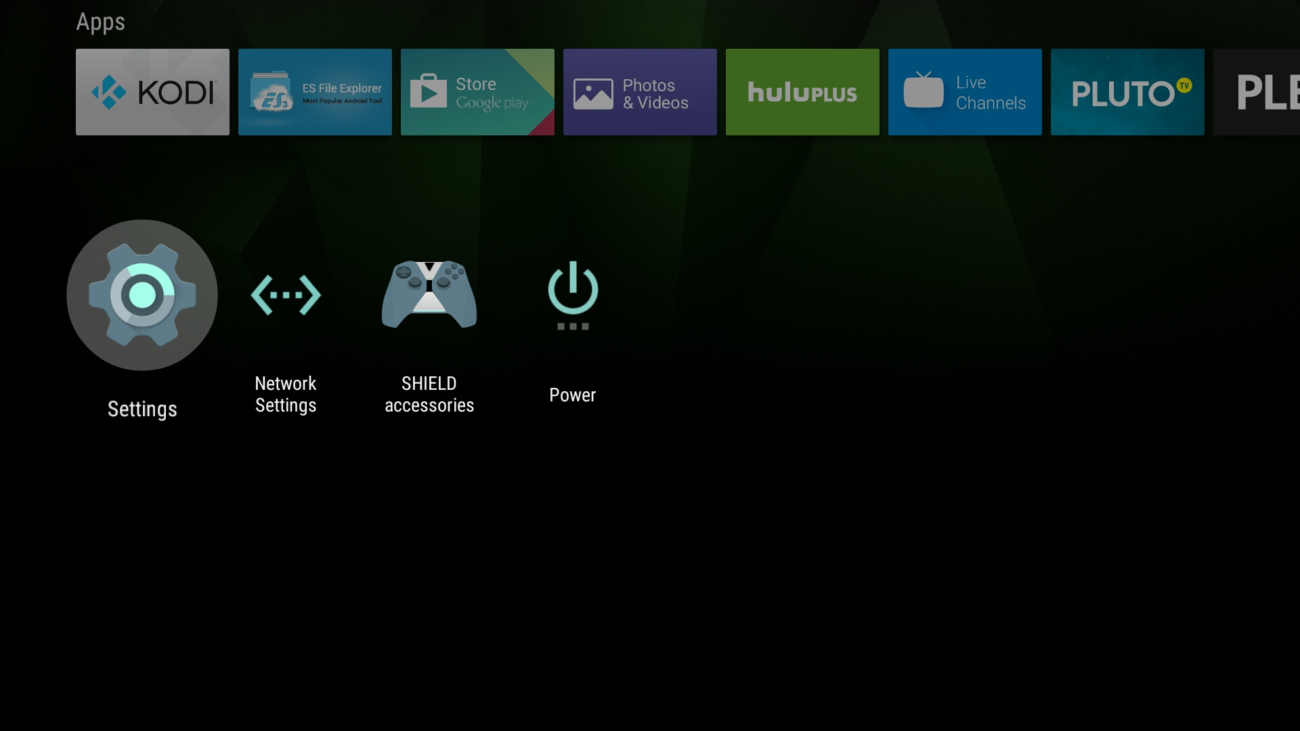
Step 1:
From the Android TV launcher, scroll down to and select “Settings”.
Step 2:
From the “Settings” menu, scroll down and select the “Security & Restrictions” menu.
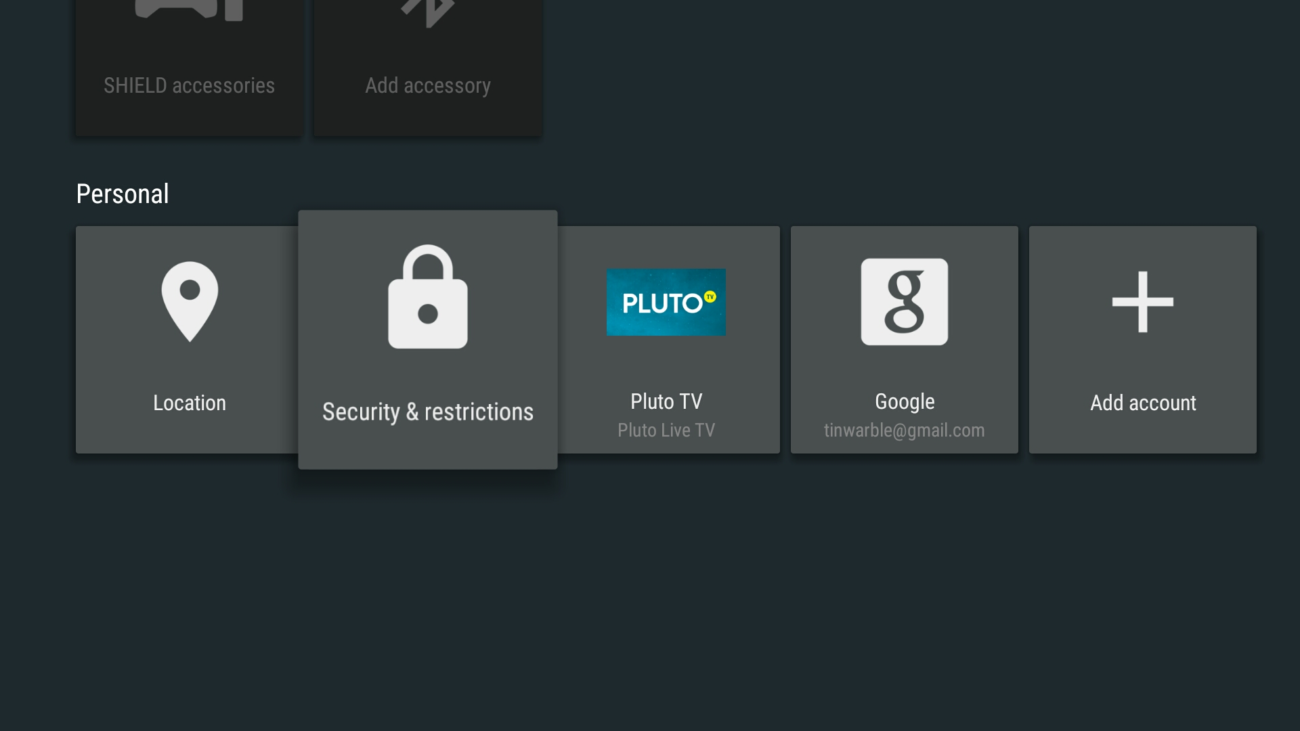
Step 3:
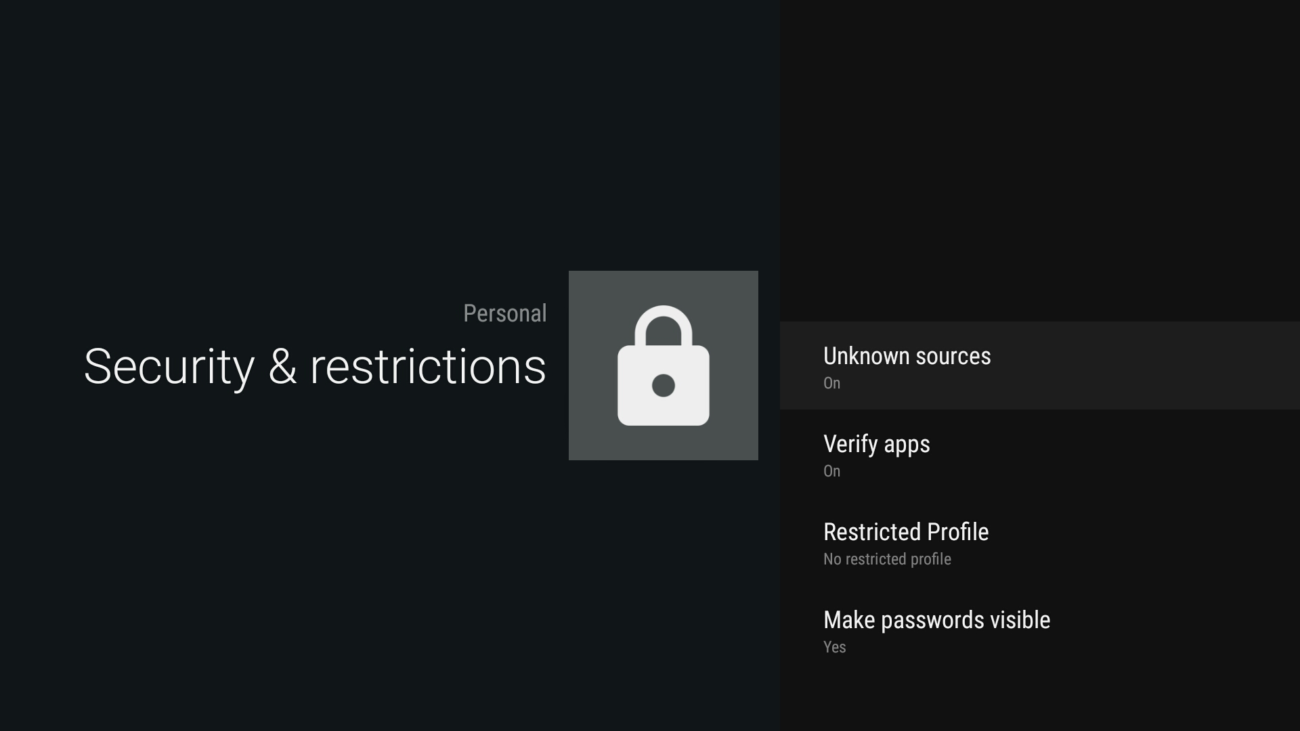
In the “Security & Restrictions” menu, turn on “Unknown Sources”.
Download Ko-di for Android from the Ko-di.tv servers. Official stable builds can be found here: http://kodi.tv/download/ You need to either select the ARM or x86 version depending on your hardware.
Choose Your IPTV Finland Plan
Enjoy over 25,000+ Live TV Channels, 140,000+ Movies & TV Shows, premium sports, and ultra-fast 4K streaming with instant activation.
VIEW SUBSCRIPTION PLANS →✔ Instant Activation ✔ Secure Payment ✔ 24/7 Support
Android TV
- From a desktop computer or phone/tablet, go to http://play.google.com using the same Google account as used in your Android TV device.
- Install a browser such as Chrome. Select your Android TV box from the popup menu after clicking the install/get button.
- To make things easy, connect a USB or Bluetooth mouse.
- Open the browser either by voice remote (for example, say “Open Chrome”) or from something such as Sideload Launcher.
- Follow the rest of the steps below for “‘Normal’ Android”
Android (normal)
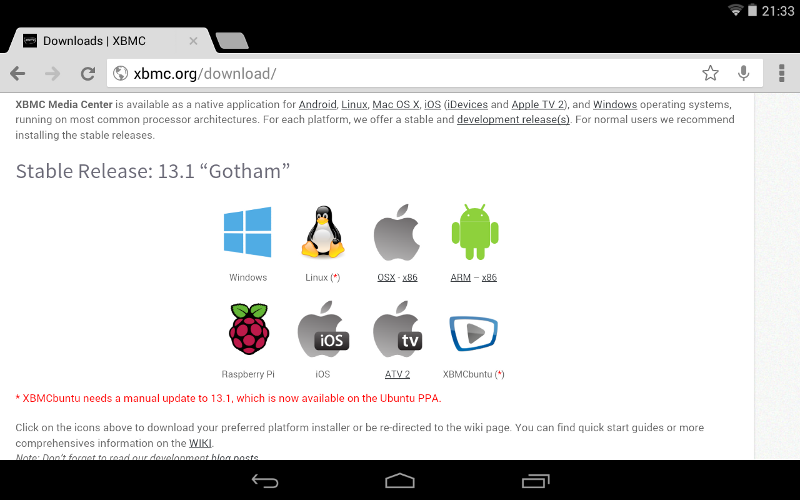
- Step 1: Load up http://kodi.tv/download/ in your Android web browser. Most users will want to use the ARM link, unless you have an Intel or AMD CPU. You may get a warning trying to download the file depending on which browser you use. You should say “OK” to actually download it.
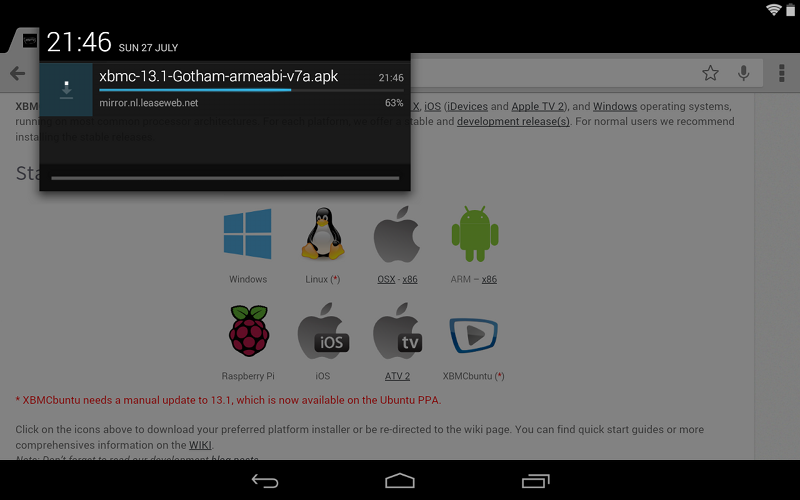
Install
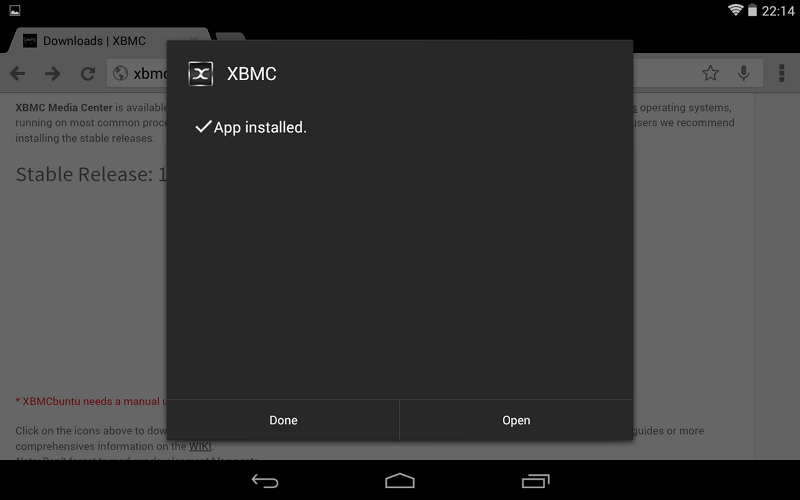
Installing the Kodi app package is as simple as just finding the .apk you just downloaded and opening it up. You can do this either though the download menu in the web browser or selecting it with a file explorer.
- Step 1: After selecting the Kodi apk file you might be asked to select something to open it with. “Package installer”, “Google Play”, or some similar option will be what you want.
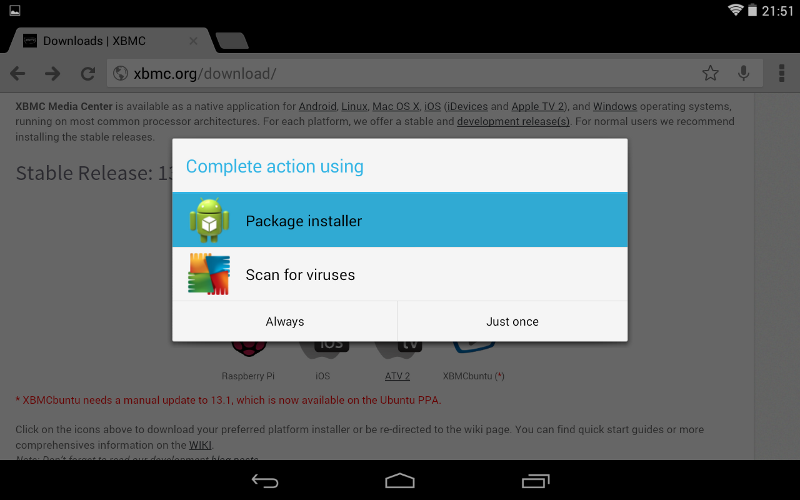
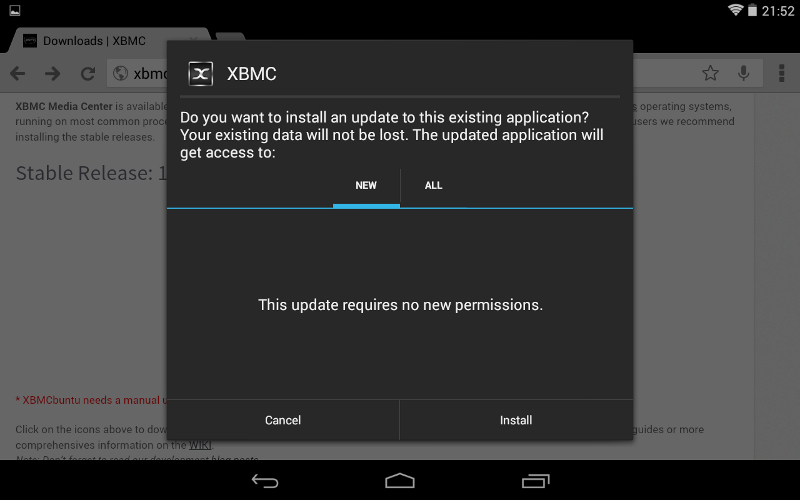
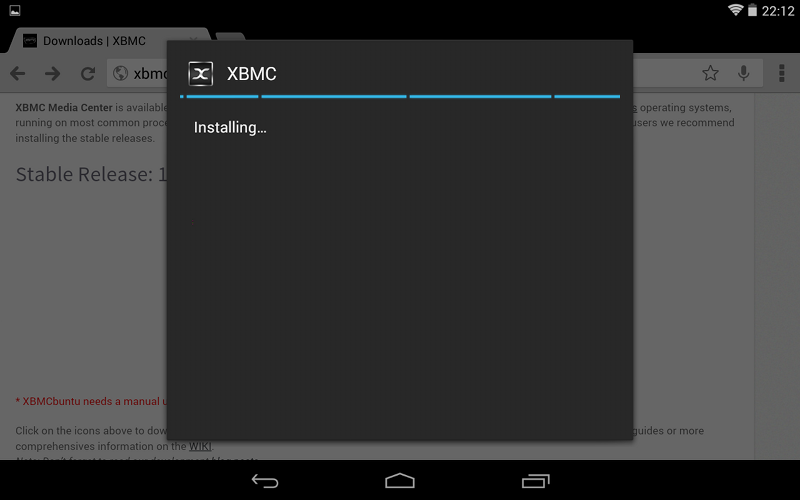
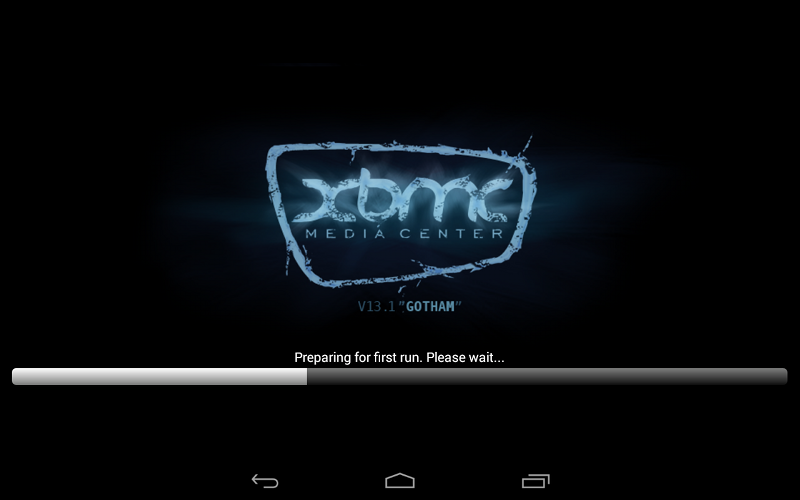
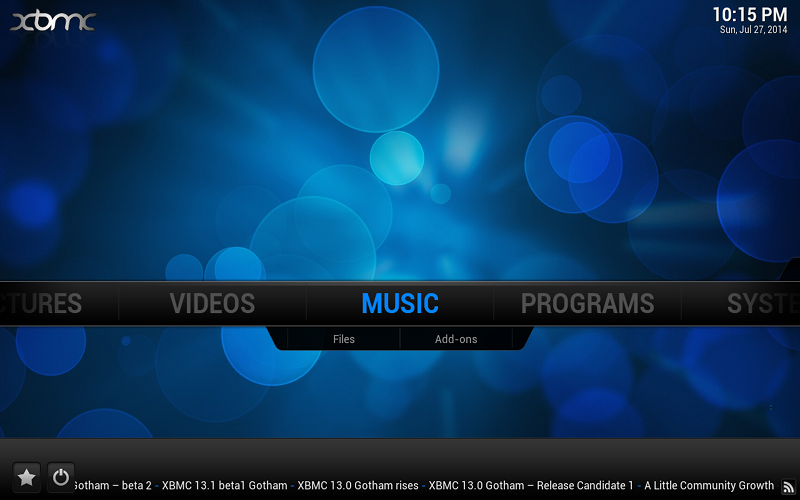
- First run: The first time you run Kodi it will take slightly longer than normal in order to finish some final installation steps. When it is done Kodi will open normally. This is only done once per installation/update, so the next time Kodi will start up a little faster.

Helpful Resources
👉 Learn More About Our Service
👉 Explore Available Plans
👉 Read More About IPTV Technology
What is Ko-di used for?
Ko-di is primarily used as a media centre for organising and playing movies, TV shows, music, photographs, and other compatible digital media.
Is Ko-di free?
Yes. Ko-di is free and open-source software. However, some services or content sources used with Ko-di may require separate subscriptions.
Can I install Ko-di on Firestick?
Yes. Ko-di can be used on compatible Fire TV devices, although the installation method may vary depending on the device and current software version.
Does Ko-di provide TV channels automatically?
No. Ko-di itself does not automatically provide premium television channels. Users must configure legitimate media sources or supported services.
Is Ko-di available for Windows and Mac?
Yes. Ko-di supports both Windows and macOS computers.