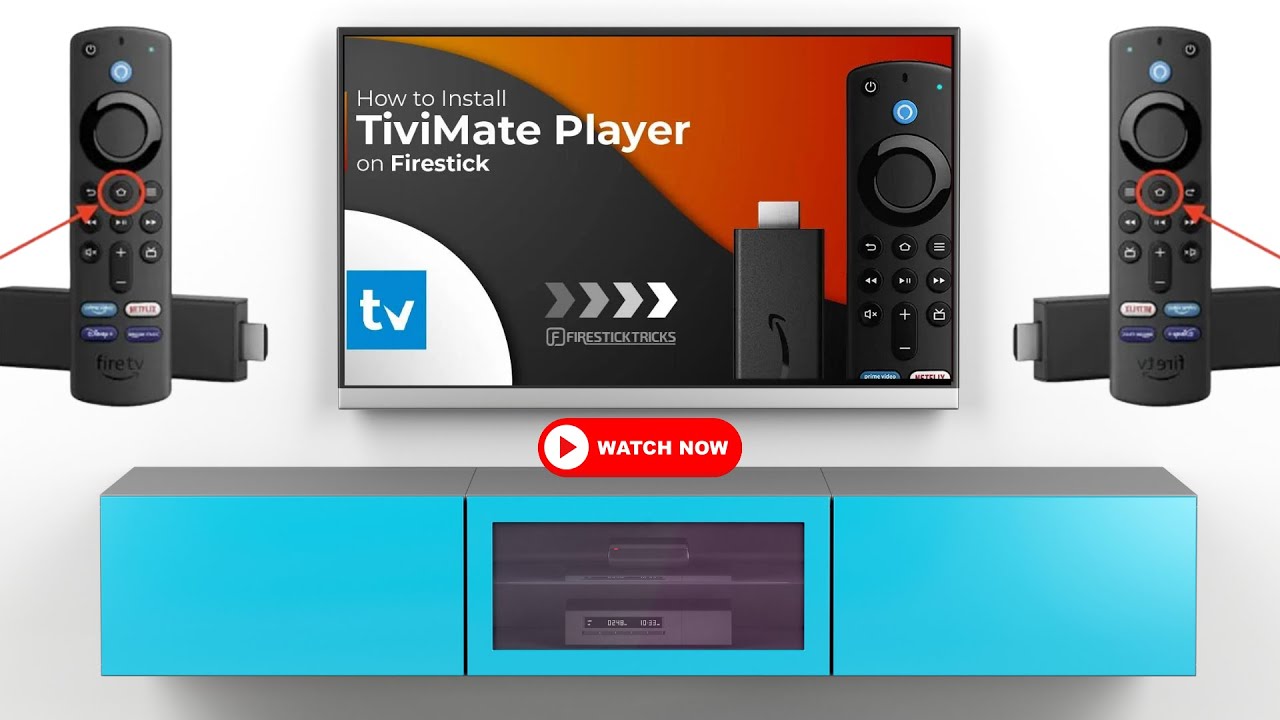
TiviMate – Firesticks is a popular combination for viewers who want an organized and comfortable way to manage IPTV playlists on their television. Firestick devices are compact, easy to use, and can turn a compatible television into a convenient streaming centre.
TiviMate provides an interface designed around live television, making it easier to browse channels, organize playlists, create favourites, and navigate between different categories. When paired with a Firestick, the experience can feel much closer to a traditional television setup while still offering the flexibility of internet-based streaming.
Before getting started, users should make sure that their Firestick is connected to a stable internet connection and that their IPTV subscription provides valid login or playlist information. Compatibility can also depend on the device model and the software version being used.
How to Get Better Performance with TiviMate – Firesticks
The quality of an IPTV experience depends on more than the application itself. Internet stability, Wi-Fi performance, device storage, and the quality of the supplied stream can all affect playback.
For smoother streaming, users should consider these practical recommendations:
- Use a reliable broadband connection.
- Place the Firestick where it receives a strong Wi-Fi signal.
- Use Ethernet through a compatible adapter when possible.
- Keep Firestick software updated.
- Keep the IPTV application updated.
- Remove applications that are no longer needed.
- Restart the device occasionally.
- Avoid downloading large files while watching live television.
High-resolution content requires more bandwidth than standard-definition streams. If several devices are using the same home network, available bandwidth can also be divided between them. A stable connection is therefore particularly important during live sports, movies, and other high-quality broadcasts.

Organizing Channels on TiviMate
One of the biggest advantages of using a dedicated IPTV player is organization. Large playlists can contain hundreds or thousands of channels, making it difficult to find frequently watched content without proper categories and favourites.
Users can organize their viewing experience by creating favourite lists for categories such as:
- Sports
- Movies
- News
- Entertainment
- Kids
- Documentary channels
- Regional television
An organized playlist saves time and makes everyday navigation much easier. Instead of scrolling through a long channel list, viewers can quickly access the content they watch most often.
Install Downloader
- Select Find from the Home screen and then click Search.

- Use your remote to type “Downloader.” As you type, predictive suggestions will appear below to save you time. Select Downloader from the options.
- On the next screen, select the orange Downloader app and click the button to download and install it.
- After installing, click Open. If you are asked to give Downloader permission to save files on your device, choose Allow.

Adjust System Settings
- Go back to the Fire TV home screen and tap over the Settings.
- Select My Fire TV.
- Tap to the name of your Fire TV. In this example, I am using the Fire TV Stick 4K Max, and then tap the Select button on your remote seven times until you see a message at the bottom of the screen. “No need; you are already a developer.”

- Press the back button on your remote.
- Tap down and select Developer Options.
- Choose Install unknown apps.
- Find Downloader in the list and select it to turn the permission from OFF to ON.

- Wait for my page to load fully, then press the Menu (or Options) button on your remote 2x to enter full-screen mode.
- Select the IPTV Players category from the list at the top of the page. Or move down to view the IPTV Players category.
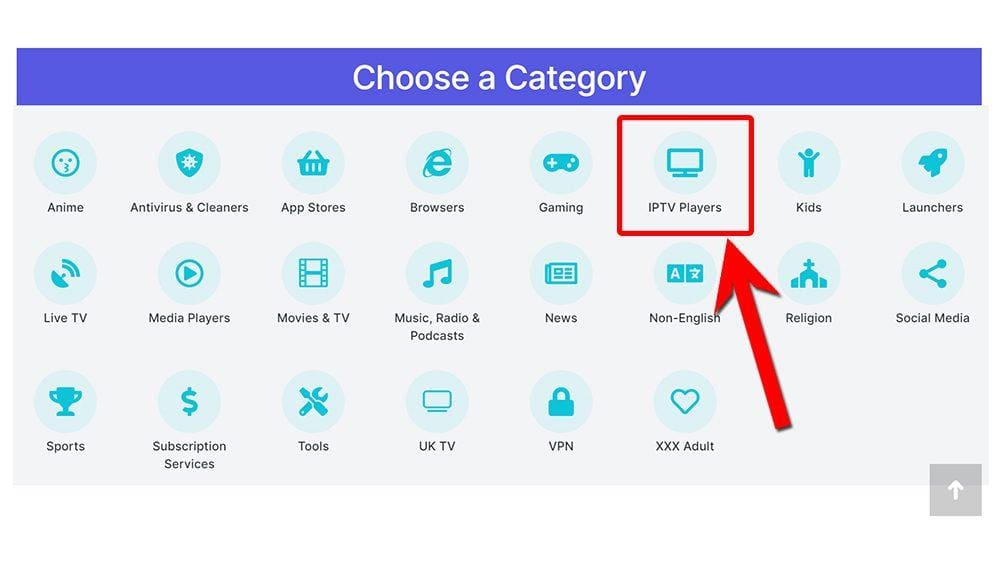
- Find the TiviMate app in the list, then select it.
- On the next page, move down until you see the blue Download button.
- Select the Download button, then select Install.
- When the app has finished installing, select Delete 2x to remove the installation file, as it’s no longer required.
Choose Your IPTV Finland Plan
Enjoy over 25,000+ Live TV Channels, 140,000+ Movies & TV Shows, premium sports, and ultra-fast 4K streaming with instant activation.
VIEW SUBSCRIPTION PLANS →✔ Instant Activation ✔ Secure Payment ✔ 24/7 Support
The TiviMate app is installed; open it from your apps screen!

How to Use TiviMate Free
If you don’t have an IPTV provider yet, check out my list of recommendations: IPTV Reviews.
Add Playlist
When you open TiviMate, you need to add a playlist to continue.
- Select Add Playlist.

- Select the Playlist type from the following options:
- M3U playlist
- Xtream Codes
- Stalker Portal
In this example, I have an M3U playlist and will continue by selecting this option.
Important Information If you haven’t received the necessary information from your IPTV provider, please contact their customer support for assistance. Most M3U links contain a username and password.
They usually look something like this: https://iptv.xyz:80/get.php?username=USERNAME&password=PASSWORD&type=m3u_plus&output=ts

- Select Enter URL then use the on-screen keyboard to enter the M3U link.
Top Tip!M3U playlists are usually long, and typing them using a Firestick remote can be time-consuming and prone to errors. To simplify the process, connect your smartphone to your Firestick and use it to type or copy-paste the M3U quickly. Watch this video to learn how: Control Your Firestick With Your Phone.
- Select Next.

- TiviMate will start processing the playlist and confirm how many channels have been imported.
- Select the Playlist name if you want to rename it (optional).
- Leave the TV playlist selected or the VOD playlist if provided by your IPTV provider.
- Select Next.

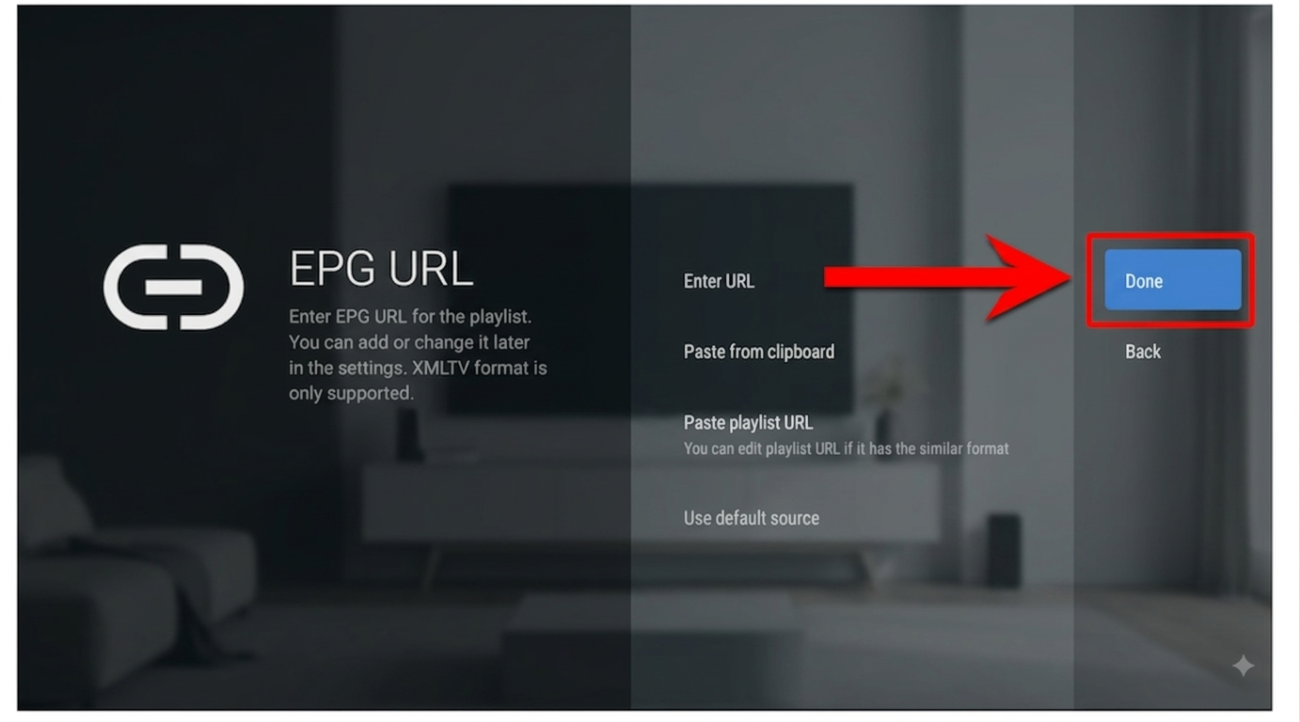
- If your IPTV provider has provided a separate EPG URL, you will then be given the option to enter it next. Select Enter URL to enter it, or select Done.
Your IPTV service is now ready to use with TiviMate!
How to Navigate TiviMate
As soon as you launch TiviMate and have imported your playlist, you’ll be greeted with a comprehensive channel list and a detailed guide (if provided by your IPTV provider).
To access the various groups of TV channels, such as Sports, News, and Documentaries, use your Firestick remote to tap to the left. This will allow you to browse and select channels that cater to your interests and preferences.
Tap over to the left again to change your view from TV to access Movies (if available from your provider), your Recordings, your List or Settings.
Select any channel to start watching.

Helpful Resources
👉 Learn More About Our Service
👉 Explore Available Plans
👉 Read More About IPTV Technology
What is TiviMate – Firesticks?
TiviMate – Firesticks refers to using the TiviMate IPTV player on a compatible Amazon Firestick device. It provides an organized interface for managing IPTV playlists and watching available live television content.
Is TiviMate suitable for Firestick users?
Yes. TiviMate is designed with a television-focused interface that works well with remote controls, making navigation comfortable on compatible Firestick devices.
Can I use multiple IPTV playlists?
Depending on the application configuration, users can organize and manage available IPTV playlists within the player. The exact features may vary according to the application version and device.
Why does IPTV sometimes buffer on Firestick?
Buffering can result from weak Wi-Fi, network congestion, insufficient bandwidth, device performance, or problems with the supplied stream. Restarting the device and checking the network can often help identify the cause.
Can I use TiviMate – Firesticks for sports streaming?
The player can be used to organize and play compatible sports streams supplied through an IPTV playlist. Available sports content depends entirely on the IPTV provider and the user’s subscription.
Is Firestick easy to use for IPTV?
Yes. Firestick is a compact streaming device with a simple interface and remote control, making it convenient for users who want to watch IPTV on a television.
Can I use IPTV on other devices?
Many IPTV services support additional platforms such as Smart TVs, Android TV devices, smartphones, tablets, and computers. Compatibility depends on the IPTV player and service being used.